 Revolution Editor
Make a game
Draw sprites and text, read the controllers and play sounds, at 60 frames a second.
Start
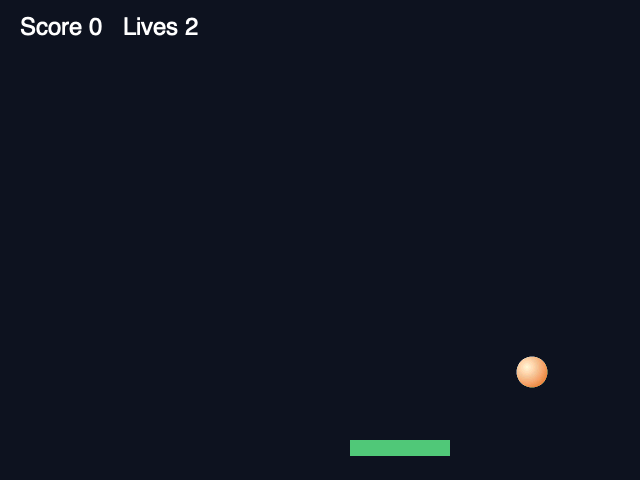
Create a project with Game: Swift, Game: C or Game: nodes (Wii Homebrew). You get a small ball-and-paddle game with its own sprite and sound. Press Build & Run to play it.
How a game works
Every frame, the app calls two functions you write:
- Update (
appOnFrame): read the controllers, move things, check collisions. - Draw (
appOnDraw): draw everything. The screen is 640 × 480 with y pointing down.
Example (Swift)
var x = 100

func appOnFrame() {
    if held(Button.right) { x += 4 }
    if pressed(Button.a) { playSound(Sound.blip) }
}

func appOnDraw() {
    drawSprite(Sprite.ball, x, 200)
    drawText("Score 0", 20, 16, size: 24)
}
Pictures and sound
Put images (.png, .jpg) and sounds (.wav, .mp3, …) in the project's assets/ folder. Each is named after its file: ball.png is Sprite.ball, blip.wav is Sound.blip. Keep sprites small and sounds short; they're stored in memory.
Drawing
drawRect(x, y, w, h, r:, g:, b:, a:): a coloured box.drawText(text, x, y, size:, r:, g:, b:): text. Sizes 16, 24, 32 and 48 are always available.drawSprite(sprite, x, y),drawSpriteScaled(…)to resize or flip, anddrawSpriteRegion(…)for sprite sheets.
Controllers
held(button)andpressed(button)for the Wii Remote buttons.pressedis true only on the frame the button goes down.stickX()andstickY()for a Nunchuk, Classic Controller or GameCube stick (−1 to 1).pointerX(),pointerY()andpointerVisible()for pointing with the Wii Remote.- Up to four players: add
player: 1,2or3. A GameCube pad or Classic Controller counts as that player's Wii Remote.
Other helpers: overlaps(…) for rectangle collisions, randomInt(lo, hi), playSound(sound). Music: put a .brstm (for example one from Mario Kart Wii, or made with Make .brstm) in assets/ and call playMusic(Music.name); it streams and loops using the file's loop points. stopMusic() and musicPlaying() do what they say. The Play Music node does the same.
Without code
Choose Game: nodes. The node editor has On Draw, Draw Rectangle, Draw Sprite, Play Sound and input nodes such as Button Held and Stick Left/Right.
Good to know
- Drawing uses the Wii's graphics hardware, so many sprites per frame is fine.
- On a widescreen TV the 4:3 picture keeps its shape with bars at the sides.
- Games can still use the UI designer for menus and score text; widgets draw on top of your game.